So you have created a video in iMovie but it doesn't contain a voice and you’re looking for the text-to-speech feature to add voiceover to iMovie without the need for self-recording or expensive voice actors, then you've landed in the perfect spot.
In this blog, we’ll discuss the topic: Does iMovie Have Text to Speech Feature?and also explore the complete guide to creating engaging voiceovers for your videos. If you're wondering the same thing, read on to find the answers!
Also Interested in: How to Add Natural-sounding AI Voice to Video>>
Part 1. Does iMovie Have the Text to Speech Function?
How do you add AI voiceover to iMovie?
How do you do text-to-speech in iMovie?
Most people are searching for ways to do text-to-speech in iMovie. So is there text to speech feature in iMovie? Unfortunately, iMovie does not have the built-in text-to-speech function for users to generate natural-sounding voiceover from text. Instead, it enables you to record self-narration voice to make your video more engaging or add text overlays to your videos without the text being read aloud by using title templates and captions within iMovie.
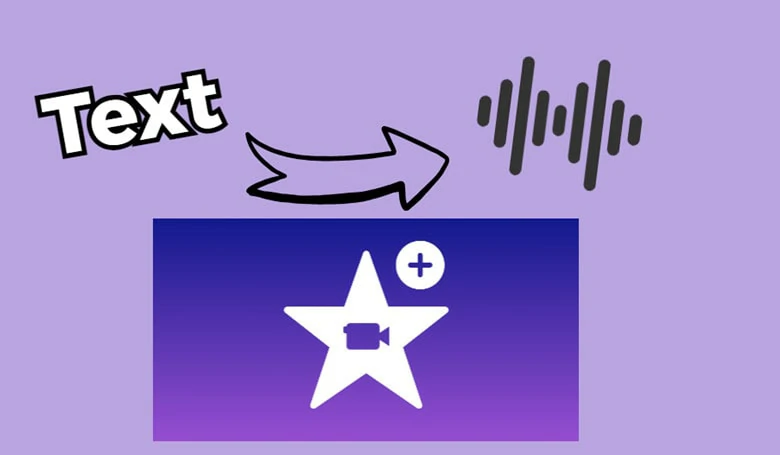
How to Do Text to Speech in iMovie
While iMovie does not have a built-in TTS tool, you can still apply two workarounds for getting AI voiceover into iMovie:
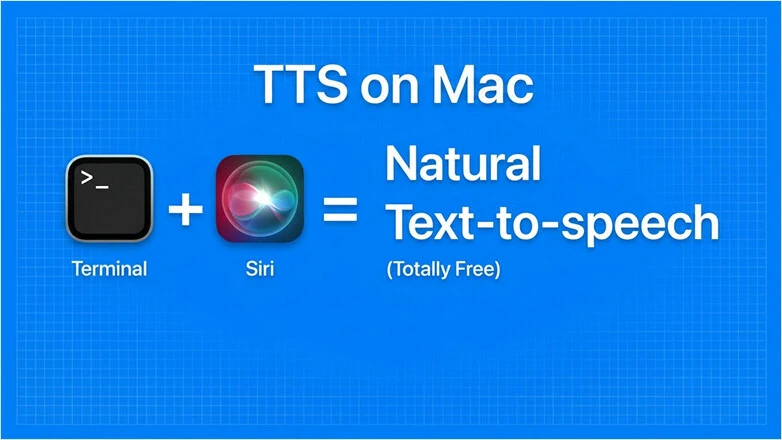
Generate TTS with Terminal on Mac
Although these workarounds are practical, their limitations are also clear: third-party solutions require time to learn new software and switch between tools, while built-in options often lack flexibility in voice styles, tones, and customization.
Is there a better solution? In the next section, we'll introduce an iMovie alternative that allows you to generate AI voices with just one click, while retaining the familiar features you love in iMovie. Let’s take a look!
Part 2. The Best AI iMovie Alternative to Create AI Voice with Text-to-speech Feature
If you're a die-hard iMovie fan but feel disappointed by the lack of AI features, then FlexClip is your perfect choice.
As a video editor with a built-in TTS tool, FlexClip lets you instantly convert text into lifelike voiceovers. With 3,700+ voices across 80 languages, you can choose from a wide range of male and female voices, different age groups, and various tones, with flexible customization controls to perfectly match your content. Powered by advanced AI voice models from Google, Microsoft, ElevenLabs, and MiniMax, FlexClip transforms your scripts into natural-sounding voiceovers with realistic delivery, expressive emotions, and accurate pronunciation.
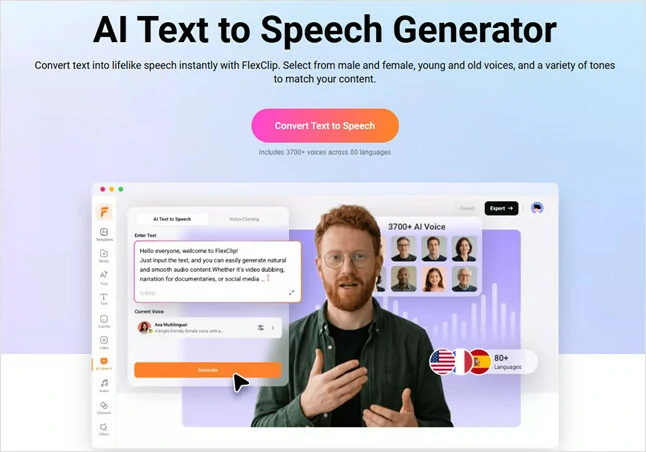
FlexClip's TTS Tool with Multiple Voices Support
Want a more personalized voice instead of choosing from a preset library? FlexClip has you covered! With its voice cloning feature, you can create a custom AI voice model that captures your unique vocal identity. Simply provide a voice sample, and FlexClip can generate a digital version of your voice to read any text with natural expression and emotion. This is ideal for brands, content creators, and businesses that need consistent, authentic voiceovers across their content.
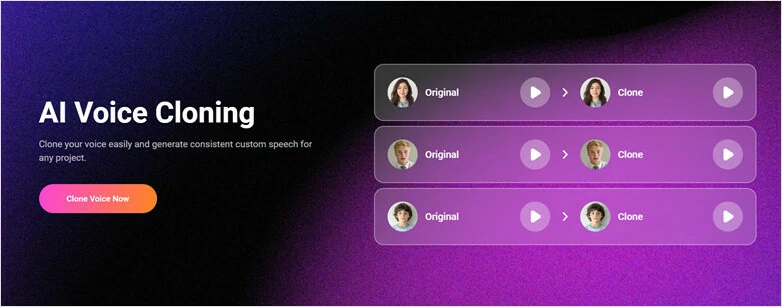
FlexClip's Voice Cloning Feature to Convert Text into Speech
How to Convert Text into Lifelike Voice Using FlexClip
Can't wait to use FlexClip to generate voiceovers from text? Follow this step-by-step guide to explore everything from its extensive AI voice library to the powerful voice cloning feature.
Step 1: Upload Your Video to FlexClip
When accessing FlexClip’s video editor, click Upload Files to import the video you want to add an AI voiceover to. You can upload media from your local device, Google Drive, Dropbox, Google Photos, or even your mobile phone.
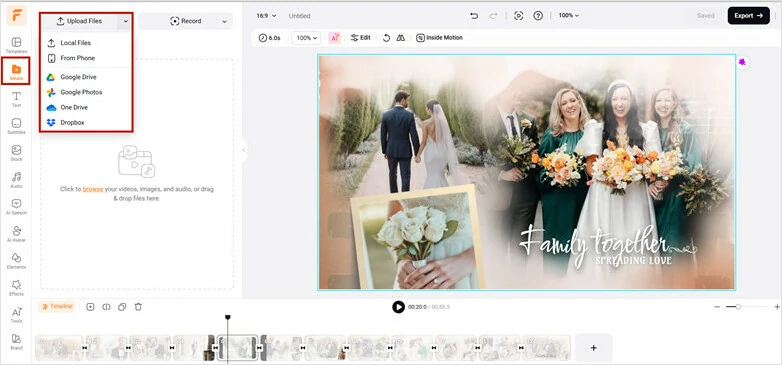
Add Your Video to FlexClip for Adding AI Voiceover
Step 2: Select Voice to Read Out Your Text
Now, head to AI Speech to choose the perfect voice for reading your script. FlexClip offers an extensive voice library with 3,700+ AI voices powered by leading models like Microsoft, MiniMax, ElevenLabs, ByteDance, Google, and more. From female to male voices, young to mature tones, and casual to professional styles, you can easily find a voice that matches your video’s theme and atmosphere.
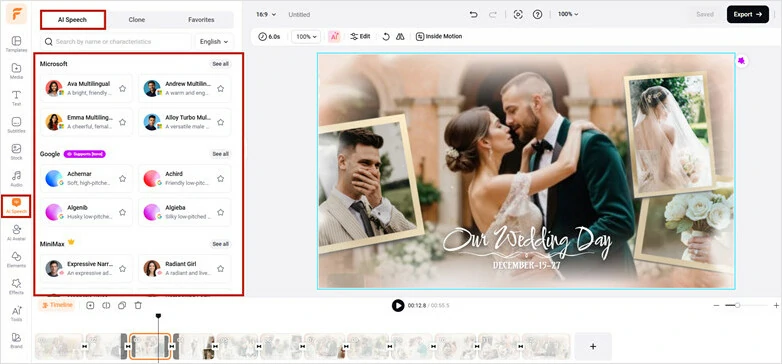
Select the Voice to Read Out Your Text
Or, if you want to create a personalized voice model, switch to the Clone panel and upload an audio sample or record your voice directly. Then, select the model, choose the cloning language, and add a name and profile image for easy identification. Once everything is set, click Generate to create a voice avatar that captures the unique tone and characteristics of your reference audio. You can then use it to convert text into natural-sounding speech.
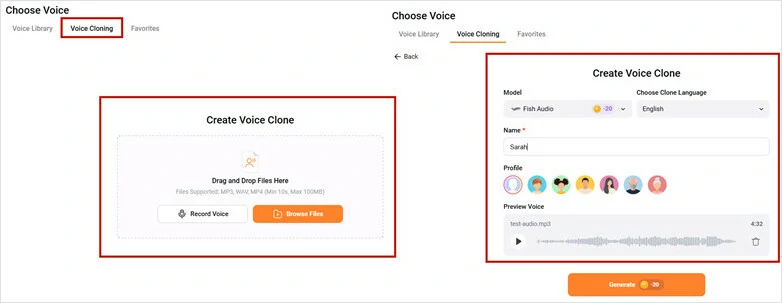
Use Clone Feature to Create Your Own Voice Model
Step 3: Add Text to Generate Speech
With your dubbing voice avatar selected, it’s time to add your script. Simply type or paste your text for a quick setup. For more customization, click the Voice Settings icon to fine-tune parameters like speed, pitch, voice style, and more, ensuring the generated speech matches your selected voice and delivers a smooth, natural result.
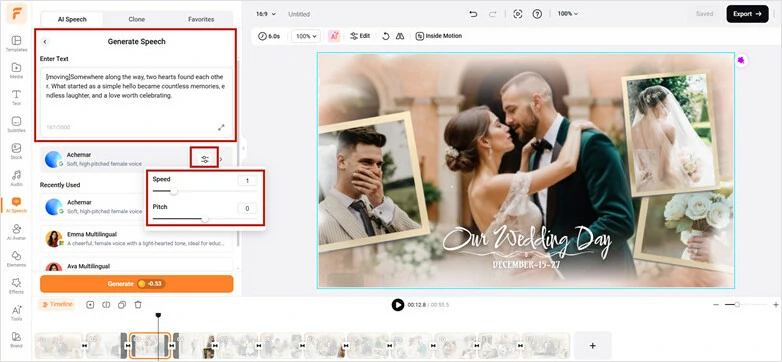
Add Text to Generate Speech in FlexClip
Step 4: Generate and Add AI Voiceover to Video
When you’re ready, click the Generate button to start the text-to-speech process. Once completed, a new interface will appear where you can preview the AI-generated voiceover, download it as a local file, or add it directly to the timeline to sync with your video content. Bring your projects to life with realistic, expressive voiceovers and take your creativity further.
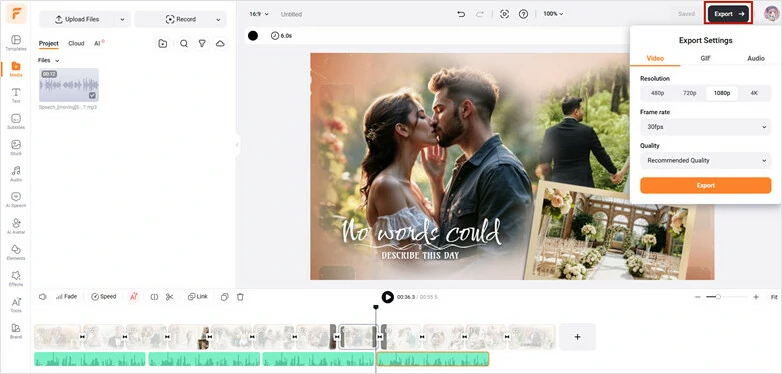
Generate and Add AI Voiceover to Video
Part 3.Why You Need to Use FlexClip as iMovie Alternative for TTS?
An extensive library of 3700+ voices across 80 languages to satisfy your diverse project needs. Whether it's an engaging speech for marketing, cute kid voiceover for educational project or emotional sound for YouTube video, you can easily find the right language, voice, tone, and accent to create content that goes global.
Express your unique personality through voiceovers with FlexClip. Use the voice cloning feature to create a personalized voice avatar for consistent and authentic narration. You can also fine-tune settings like pitch, speed, and voice style to customize the speech output exactly the way you want.
With an intuitive interface, anyone—even beginners—can quickly convert text into speech and apply the generated voiceover to their videos in FlexClip. While the workflow remains simple and user-friendly, the AI delivers professional-level accuracy in pronunciation, tone, and pacing for natural-sounding results.
FlexClip is more than just a text-to-speech converter—it’s a complete suite of AI-powered audio tools designed to enhance your content creation. With the AI Avatar Generator, you can transform existing audio into engaging videos with AI presenters. Localize your content effortlessly with the AI Translator, improve audio quality with the AI Noise Reducer and Vocal Remover, and bring your creations to life with the AI Music Generator. Explore endless creative possibilities and elevate your audio projects with ease.
In addition to its powerful AI-driven audio editing tools, FlexClip offers a wide range of AI-powered image and video features that unlock endless possibilities for content creation. With its vast media library, team collaboration support, real-time cloud storage, extensive text stock, and a mix of basic and advanced editing options, your editing process will be smooth and effortless.
Various AI-powered Features in FlexClip for You
Part 4. FAQs
It’s super easy to add a voiceover to a video in iMovie. Just import the video to iMovie, tap the Record icon to get started and tap Stop to end it. Then the recording audio clip has been added to your Timeline and tab the Done icon to save it.
Unfortunately, the answer is No. iMovie doesn’t feature a text-to-speech function at present. If you want to convert any text into human voices, turn to iMovie alternatives like FlexClip for help.




FlexClip AI Video Maker
Reach professional-quality videos faster with easy editing tools, templates, and smart AI.
Start Now for Free
Hot & Trending
-
Best Ways to Find Music in YouTube Videos
-
Instagram Story Video Quality Bad After Upload? Fix It!
-
How to Repost Video on TikTok & How to Remove TikTok Repost
-

Improve Video Quality Online: 3 AI Video Quality Enhancers You Can't Miss
-

4K Convert to HD 1080p without Watermark: Best 4k Video Converters
-
Best 8 Free Video Editors - No Download Required
-
Top 13 Birthday Video Makers with Music and Effects Free
-
How to Search Filters on TikTok & Use a Filter You See - TikTok Filter Guide